At a glance
On Nov. 10, 2026, HitZone announced My Box and Gear Optimizer on the Invokers Portal. The web tools let players inspect their collections and plan Relic and Accessory swaps using gear they already own.
The short version
- My Box brings your Invokers, Titans, gear and recorded teams into a browser view.
- Gear Optimizer searches the account's inventory using goals you select for each Invoker.
- A planned swap takes effect only after you confirm. The final review shows the changes and their Gold cost.
What does My Box show and share?
My Box opens under Hub after you sign into the official portal with your game account. The main views cover Invokers, Titans, Relics, Accessories and Teams. You can filter the Invoker list by rarity or element, see equipped items and look up the teams attached to your recorded clears. Refresh the page's collection data when it no longer reflects a change you made in the game. HitZone's My Box documentation explains what the portal reads.
The sharing feature creates a read-only snapshot of your collection that lasts a week by default. Refreshing the share link updates the snapshot and extends its life. You can also issue a replacement link or stop sharing. That gives someone helping with a build a way to check what your account owns, including the gear available to move. HitZone's Nov. 10 announcement describes the sharing controls.
How should you evaluate a proposed gear swap?
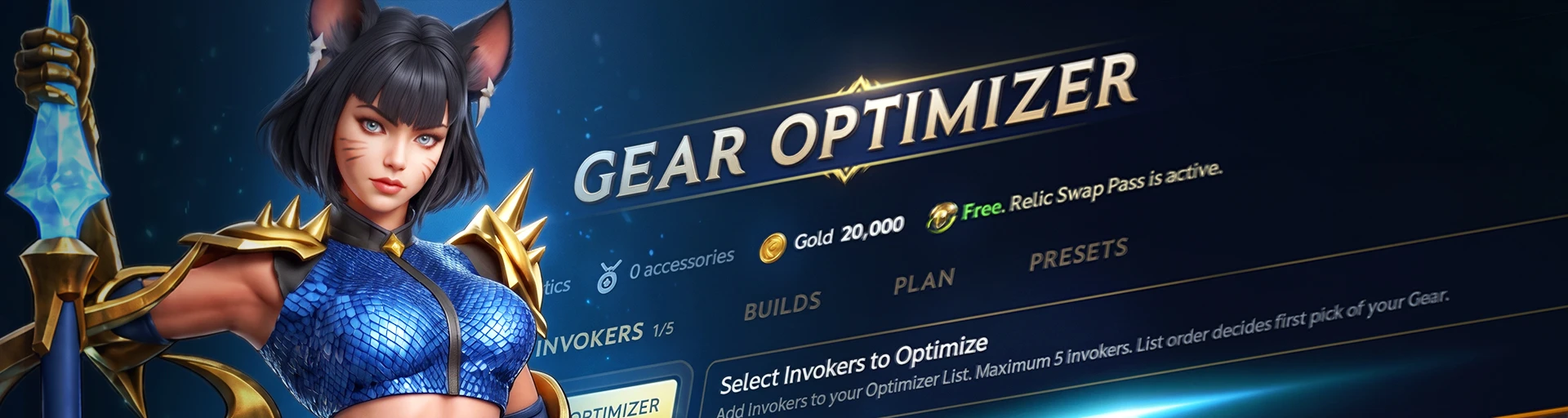
Pick an Invoker and choose what the build should accomplish. A support hero may need a minimum Speed stat, for example, while a damage specialist can use a damage goal. The optimizer can search specific set bonuses and item slots, and a slot marked Keep Current keeps its existing item. If you select a team, the first Invoker in the priority order gets first pick from the inventory.
Open a result to see the proposed gear, changes to stats and any Gold cost. Add promising results to the Plan if you want to see their combined effect before equipping. Pay attention to the Include Worn Gear option. It broadens the search to items already equipped by other Invokers, so a promising result for one build can remove a useful item from another. The official Gear Optimizer is available from the portal. Its setup and confirmation guide documents the available controls.
Maya's take Start with one team that's already in regular use. Check which items actually move and what the complete change costs before you apply it. Save a working plan as a preset if you expect to return to that encounter.
For more context on those teams, visit the GameSelecto Invokers coverage hub. Readers moving between devices can also check the official desktop client and account setup steps.
Sources · checked Nov 27, 2026
- HitZone — My Box and Gear Optimizer announcement
- HitZone — official My Box and Gear Optimizer guide
- HitZone — Gear Optimizer portal