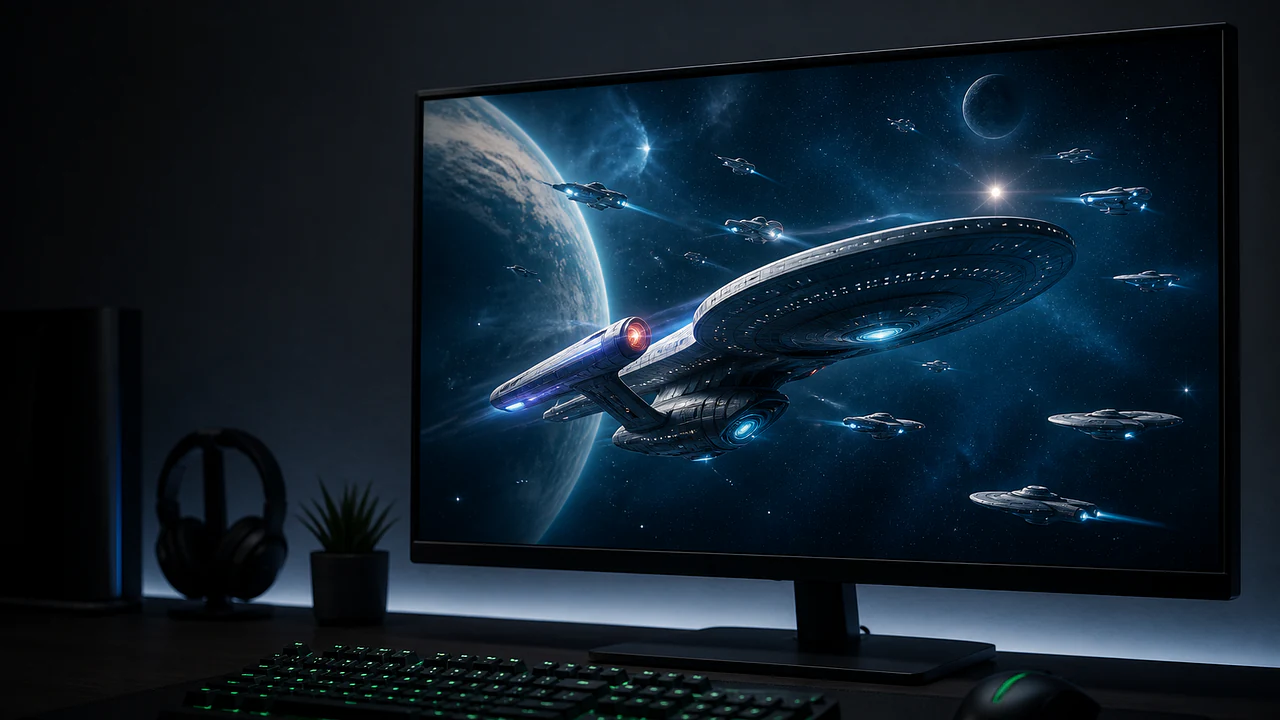
The short answer: download the official native client from the Star Trek Fleet Command website, install the Windows or macOS version, then sign in with a Scopely Account. Existing mobile players should link and save their progress to a Scopely Account before opening the desktop client. You do not need an Android emulator for the official PC or Mac version.
The desktop client is useful when you want a larger galaxy map, longer station-management sessions or a separate device for alliance activity. The important part is not the installer—it is protecting the account that already contains your progress before you change platforms.
Where can you download Star Trek Fleet Command for PC?
Use the official Star Trek Fleet Command website and select the Windows or macOS download. Scopely's support instructions direct both existing and new players to that site. Avoid third-party download pages that repackage the installer or ask for unrelated software.
This is a native desktop release, not a browser version. After the file downloads, run the installer and open the game as a normal desktop application. On macOS, Scopely specifically says the game must be installed in the Applications folder.
Keep the official site bookmarked for future downloads. Live games update their clients, and a current official installer is safer than an old file stored by another website.
How do you move an existing mobile account to PC or Mac?
Link the mobile save to a Scopely Account first. On the phone or tablet that already has your correct station, open the account options and make sure the game is saved with credentials you control. Only then install the desktop client.
Scopely's official sequence is:
- Save the existing mobile or tablet game with a Scopely Account.
- Download and install the official PC or Mac client.
- Open the desktop app and choose to join with a Scopely Account.
- Enter the same credentials used for the mobile save.
- Confirm that the expected station and progress load before changing anything else.
Do not create a second Scopely Account while trying to move the save. If the desktop client opens a new station or tutorial unexpectedly, stop and verify the login rather than progressing on the wrong account.
Can a new player start directly on PC?
Yes. Scopely says a first-time player can install the desktop client, enter the game without a Scopely Account, finish the tutorial, then save the new game from Settings > General with a Scopely Account.
Create that account as soon as the tutorial allows it. It protects the new save and enables access across supported platforms. Record which email or login method you used; many “missing progress” problems begin when a player later chooses different credentials.
Once the account is secure, follow our STFC beginner guide rather than upgrading every new notification at once.
What are the minimum PC and Mac requirements?
Scopely's support page lists these minimums as checked on August 30, 2026:
| Platform |
CPU |
Graphics |
Memory |
Operating system |
| Windows PC |
Intel i3-4130 3.4 GHz |
Intel Graphics 4400 |
8 GB RAM |
Windows 10 64-bit |
| Mac |
1.3 GHz dual-core Intel Core i5 |
Intel HD Graphics 5000 |
4 GB memory |
macOS 11 Big Sur |
A separate Unity update notice recommends Windows 10 version 21H1 or newer on x64, Windows 11 21H2 or newer on Arm64, and macOS Big Sur 11 or newer. Treat the newer operating-system recommendation as the safer target. Minimum specifications only describe the published floor; background applications, storage and later updates can still affect performance.
If your device is close to the minimum, close heavy background apps, keep the operating system and graphics drivers current, and make sure the installation drive has free space.
Do you need an emulator to play STFC on PC?
No. The official Windows and macOS clients provide a direct desktop route. An emulator adds another software layer and is unnecessary for the setup described by Scopely.
The native client also gives you a clearer account path: download from the publisher, install, and join with the same Scopely Account. If you see older guides built entirely around Android emulation, check their publication date. They may predate the official desktop release.
Can you use the same STFC account on mobile and desktop?
Yes, provided the save is linked to the same Scopely Account. Scopely describes the account as the mechanism that saves the game and makes it accessible cross-platform.
Use one device at a time when making important account changes, and verify the station name or progress after login. The desktop client does not create a separate “PC character” when the correct existing account is loaded. Your ships, officers, station and progression should belong to the same save.
This makes desktop particularly convenient for resource sessions. You can plan survey ships using our mining guide and keep mobile access for shorter checks away from the computer.
What should you do if the PC client does not open or your save is missing?
First separate a client problem from an account problem. If the app crashes or never reaches login, check the current minimum specifications, operating-system version, updates and installation location. On macOS, confirm the game is in Applications. Use Scopely Support for current troubleshooting before deleting account data.
If the client opens but displays the wrong progress:
- Do not continue the unexpected tutorial or spend resources.
- Confirm the Scopely Account credentials used by the original mobile save.
- Sign out of the incorrect account and retry with the correct method.
- Gather your player identifier from the working device if support asks for it.
Never uninstall the only working copy of the game until you know the save is linked. The safest transfer is always: verify the original save, link it, test the desktop login, then use both platforms normally.
Frequently asked questions
Is Star Trek Fleet Command available natively on PC?
Yes. Scopely provides official Windows and macOS clients, so an Android emulator is not required.
Can you keep the same STFC save on mobile and PC?
Yes, when the original save is linked to the same Scopely Account used in the desktop client.
What should you do if PC opens a new tutorial?
Stop before spending or progressing. Verify the login credentials against the working mobile save and sign back in with the correct Scopely Account.
Can a new player begin directly on PC?
Yes. Finish the tutorial, then save the new progress to a Scopely Account from the game's settings as soon as that option becomes available.
Does the PC client remove STFC timers?
No. It changes the device and interface, not the underlying progression, event rules or construction and repair timers.
Is the PC version worth using?
It is a practical option for players who prefer a larger screen, mouse input and longer management sessions. It does not remove the game's timers or progression requirements, and it does not replace the need for focused ships and crews. Read our 2026 Star Trek Fleet Command review for the broader time-commitment tradeoffs.
For most existing players, the best reason to try the desktop client is continuity: the official version keeps the same Scopely-linked progression while letting you choose the device that suits the session.
Free to play. Standard data rates and in-app purchases apply.