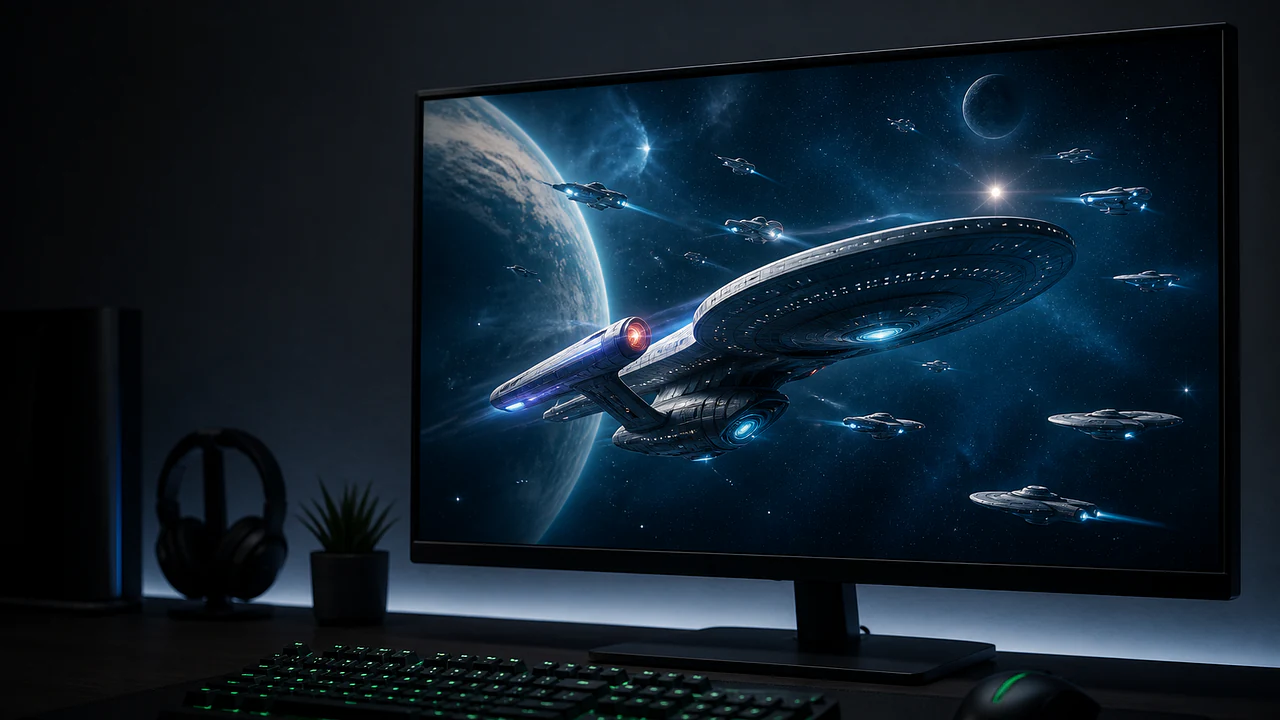
Star Trek Fleet Command PC setup checklist for 2026
A practical Windows setup checklist for STFC covering minimum hardware, account safety, the official installer, display choices and repair steps.
By Ethan10 min readAs of official Windows client, minimum specifications and Scopely Account support checked August 31, 2026All Star Trek Fleet Command coverage →
GameSelecto earns a commission on some hardware links. It never changes a verdict, and we only link to gear we would recommend without one.Full disclosure.
The short answer: for the official Windows client, Scopely lists a 64-bit Windows 10 PC, an Intel Core i3-4130 at 3.4 GHz, Intel Graphics 4400 and 8 GB of RAM as the minimum baseline. Before installing, link the correct mobile save to a Scopely Account. Download only from the official STFC site, verify that the expected station loads, then set resolution and background-app use around stability rather than maximum visual settings. An emulator is unnecessary.
This checklist is for a clean, supportable setup, not a benchmark claim. Scopely warns that meeting the minimum specifications alone may not guarantee the experience on every machine. Drivers, thermals, storage health, background applications and network quality can still create stutter or crashes. Use the official client and change one variable at a time when diagnosing a problem.
Star Trek Fleet Command PC requirements at a glance
Component
Official Windows minimum checked
Setup advice
Operating system
Windows 10, 64-bit
Install current supported updates before troubleshooting the game
Processor
Intel Core i3-4130, 3.4 GHz
Treat this as a launch floor, not a high-frame-rate target
Graphics
Intel Graphics 4400
Use conservative resolution and effects on integrated graphics
Memory
8 GB RAM
Close browsers, overlays and unused launchers on an 8 GB system
Client
Official native Windows release
Do not add an Android emulator layer
Account
Scopely Account recommended
Link the existing mobile save before changing devices
The exact minimum values come from Scopely's current crash and specification article. Scopely does not publish a durable Windows free-space figure on that page, so this checklist does not invent one. Keep enough free room for the client, updates, temporary files and Windows maintenance, and check the installer rather than relying on an old third-party number.
Checklist 1: protect the account before downloading
An existing player should begin on the phone or tablet that already displays the correct station. Open the player profile and Settings, confirm the account identity and link the game to a Scopely Account. Record the player name and, where accessible, the account identifier before touching the desktop client. This turns a setup error into a recoverable login problem instead of a missing-save panic.
Scopely's official PC launch procedure places this first: save the mobile or tablet game with a Scopely Account, download the PC client, then join with those same credentials. Do not create a second Scopely Account because the first password is inconvenient. A new login can open a fresh tutorial and make the original progress appear absent.
Account checklist:
Confirm the existing station is visible on the original device.
Link it to an email address and password you control.
Complete any confirmation email before installing elsewhere.
Record the correct player name and server context.
Keep the original device installed until the desktop station is verified.
If this is a brand-new account, Scopely says a player can install on PC, enter without a Scopely Account, finish the tutorial and save the game afterward in Settings > General. Link it before investing significant time or money.
Checklist 2: download the native Windows client safely
Go to the official Star Trek Fleet Command website and choose Windows OS. The official page also exposes Mac, iOS and Android routes, which helps confirm that the site is the publisher's platform hub rather than a repackaged download page.
Use these safeguards:
Check that the browser address belongs to startrekfleetcommand.com before downloading.
Let the official installer choose a normal application location unless the drive has a clear storage problem.
Decline unrelated software if any third-party download mirror was opened accidentally; then close it and return to the publisher.
Keep Windows Security or the chosen endpoint protection active.
Launch the installed client from the Windows application entry, not from a copied executable of unknown origin.
The desktop version is native. An emulator adds virtualization, another Android image, more memory use and another set of graphics drivers. It also makes support harder because a crash may belong to the emulator rather than STFC. Our shorter PC and Mac installation guide covers the account-transfer sequence; this page focuses on preparing and stabilizing the machine.
Checklist 3: verify the right station before playing
At first launch, choose the option to join with a Scopely Account and use the same credentials linked on mobile. Stop at the first view of the station and compare player name, Operations level, alliance, resources and a recognizable ship. Do not complete a new tutorial or make purchases if those details are wrong.
If a fresh station appears:
Close the client without developing the new account.
Recheck the email address and login method.
Confirm the original device still opens the intended station.
Use the account recovery path rather than linking the wrong station over the right one.
Scopely's reinstallation guidance repeats the same safety rule: make sure progress is connected to a Scopely Account before removing or reinstalling the game. The account check is therefore part of hardware setup, not an optional administrative step.
Checklist 4: choose stable display and graphics settings
The official minimum includes Intel Graphics 4400, but that does not mean every resolution and background workload will be comfortable. Begin with the monitor's normal resolution only if the game remains stable. On an older integrated GPU, lower the game resolution or effects before blaming the network for slow map movement.
Use a baseline session:
Reboot the PC so the first test does not inherit days of background use.
Close large browser sessions, video encoders and unnecessary launchers.
Open STFC and remain in the station for several minutes.
Move between station, system and galaxy views.
Enter one ordinary hostile battle and one repair cycle.
Watch for repeatable freezes, display corruption or a memory warning.
Do not change five graphics and Windows settings simultaneously. If stability improves, one-variable changes make the cause understandable. If the machine has 8 GB of RAM, browser tabs and overlays are especially important because the official minimum leaves less room for multitasking.
Checklist 5: configure input, scaling and window behavior
STFC was designed for touch and desktop access, so mouse targeting should feel deliberate rather than twitch-sensitive. Windows display scaling can affect how much of the galaxy map fits on screen. Test the default scaling before forcing a custom value, and make sure interface text remains readable at the distance from which the monitor is used.
A sensible desktop setup includes:
A resolution that keeps text clear without overloading integrated graphics.
Windows scaling that does not cut off launcher or confirmation buttons.
Notifications muted during alliance events if pop-ups cover controls.
A mouse with a reliable primary click and wheel for map navigation.
Audio set low enough that voice chat or alliance communication remains audible.
The PC advantage is information density: station timers, systems and fleet positions are easier to compare on a larger display. It does not change the underlying account progression. Use our beginner guide to decide what the larger screen should help you prioritize.
Checklist 6: prepare the network without unsafe shortcuts
STFC is an online game, and travel, combat and alliance updates depend on a stable connection. Prefer a reliable home connection over a congested public network. If Wi-Fi drops, test Ethernet or a closer access point before changing firewall rules.
Do not disable Windows Security permanently to test a connection. Instead:
Confirm Windows date and time are correct.
Restart the router and PC once.
Test another trusted network if available.
Allow the official launcher through the firewall only when Windows identifies it correctly.
Avoid a VPN during diagnosis because it changes route, latency and login geography.
Check Scopely's known-issues or support pages before reinstalling.
A connection that opens websites can still be unstable for a persistent game session. Repeated disconnects at the same time on multiple devices point toward the network or service; a crash on one PC points more toward the local client, drivers or memory.
Checklist 7: use the least destructive repair order
Start with the smallest reversible action. Scopely's support article recommends system updates and launcher repair steps for Mac, and the same diagnostic principle applies on Windows: update the supported operating system, close the client, reopen the official launcher and use its available repair function before removing account data.
Use this order:
Confirm the Scopely Account and player details are recorded.
Restart the game.
Restart Windows.
Install pending Windows and graphics-driver updates from trusted sources.
Close overlays and high-memory background applications.
Use the launcher's repair option if present.
Reinstall only after account linkage is confirmed.
Contact official support with hardware, Windows version, error message and the steps already tried.
Avoid registry cleaners, mystery “game booster” utilities and copied DLL files. They create new variables and can turn a repairable client problem into a Windows problem.
A practical first-session test
Once the correct account loads, run a 20- to 30-minute ordinary session rather than an artificial stress test. Collect station resources, open the galaxy map, recall a ship, start a mining trip and fight a normal hostile. This touches interface, network, map rendering and combat without risking unusual cargo or expensive repairs.
If the session succeeds, add normal multitasking gradually. Open alliance communication, then the browser tabs actually used for reference. If performance collapses only after the browser returns, memory pressure is the likely constraint. If the game struggles while nothing else is open, lower settings and compare the machine with the official baseline.
For efficient fleet assignments after setup, use the ships and mining guide and crew guide. A stable client is useful because it makes repeated management easier; it does not make a poorly matched crew win.
Frequently asked questions
Do I need an emulator to play Star Trek Fleet Command on PC?
No. Scopely publishes an official native Windows client. The emulator adds overhead and is unnecessary for the supported setup described here.
What are the official minimum PC specifications for STFC?
Scopely lists Windows 10 64-bit, an Intel Core i3-4130 at 3.4 GHz, Intel Graphics 4400 and 8 GB of RAM. The publisher also warns that minimum specifications alone may not guarantee a problem-free experience.
Will my mobile STFC progress appear on PC?
Yes when the existing save is linked to a Scopely Account and the desktop client uses those same credentials. Verify the station before progressing or purchasing anything.
How much free storage does STFC need on Windows?
Scopely's current minimum-specification page does not publish a durable Windows storage number. Check the official installer and keep additional free space for updates and Windows temporary files instead of trusting an old third-party figure.
What should I do if STFC crashes after installation?
Confirm the account is linked, restart the client and Windows, update the supported system and graphics driver, close overlays, use the official launcher repair path and reinstall only as a later step. Contact Scopely support with the exact hardware and error if the issue persists.
Final PC setup verdict
The safest STFC PC setup is modest: supported 64-bit Windows, at least the published CPU/GPU/RAM floor, the native publisher client and a verified Scopely Account. Stability comes from reducing background pressure, testing one change at a time and protecting the save before repair work.
STFC remains a long-term 4X rather than a performance showcase. Read our 2026 review before treating a smoother desktop session as a reason to accelerate spending. The PC client is best used to make the galaxy and account easier to manage, not to turn timers into urgency.
Free to play. Standard data rates and in-app purchases apply.
Build useful early STFC crews for hostiles, PvP, mining and Armadas by matching the captain, bridge abilities and target instead of chasing power alone.
Aug 30, 20267 min read
YOUR PRIVACY
Choose how GameSelecto measures visits
Necessary storage keeps your choice. Analytics helps us improve articles; advertising measures campaigns. Optional tracking stays off unless you allow it.Cookie details.
COOKIE SETTINGS
Control optional tracking
Necessary storage is always on so the site can remember this choice.